
How to Reinstall Windows 11 – without losing your programs and files
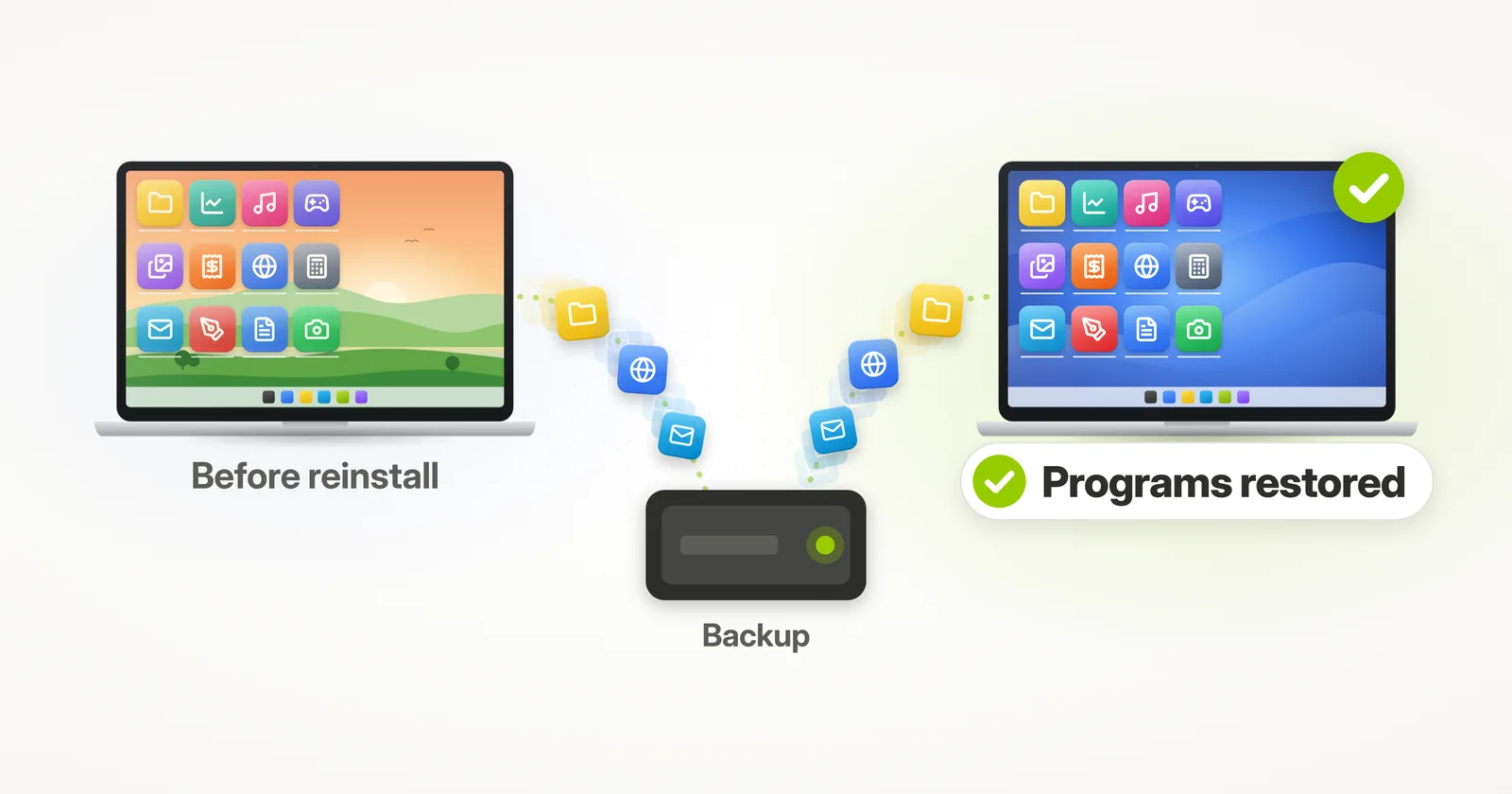
In this article, we will learn how to backup and restore your PC, so that you can safely reinstall Windows and do a complete system wipe and refresh – while keeping your programs, profiles, accounts, settings, documents, pictures, music, movies, favorites, and all files.
This kind Windows “wipe and reinstall” is a useful procedure in many cases. It could be a virus infection, a Windows Updates failure, or just Windows 11 / Windows 10 becoming too slow or problem-ridden for use. In these cases, PC repair techs often recommend the “back up and restore” approach: back up the computer, reset Windows, and recover your stuff from backup.
Traditionally, this has been a cumbersome process, and what’s worse – with traditional backups, you only get a partial recovery (user files only). Fortunately, there is a better way. In this article, we’ll see how to do a complete backup and recovery without losing anything!
How do I reinstall Windows 11 without losing my programs?
Short answer: Back up your programs, settings and files with Zinstall Migration Kit Pro, reinstall Windows 11, then restore them all from that backup – programs included, ready to use. Windows’ own Reset this PC keeps your personal files at most: even with “Keep my files”, it removes your installed programs.1
How to Backup and Restore your Windows PC
The first step in a reinstall like this is to back up everything you’ve got – so that you can restore all of your stuff after you reset your computer. The product we will be using for this is Migration Kit Pro, which allows to easily back up, and most importantly to easily restore programs, settings and files after reinstalling Windows (even if you are switching to a different Windows version!). Alternatively, you can also use any 3rd party backup product that can perform a full system image backup, although that would only allow you to restore files, not programs.
How to backup your Windows so that you can restore programs, settings and files after the reinstall
Before we begin, the most important part is to have a full, complete backup of your computer. This is crucial – without this step, you will lose your programs and data if you wipe the system clean.

- Download and run Zinstall Migration Kit Pro on your computer.
- Use its 3rd option, “Moving from Machine to Container”.
- Select the C: drive on Source selection, and select a place to store your backup container (it’s just a big file) in the Target browse selection.
- A good place to store the container is a USB external hard drive. Alternatively, you can use a network drive, another hard drive in the computer etc.
- Start the backup process. This should take a long while, and you will see a message confirming that the container has been created successfully.
That’s it – with just a few clicks, your stuff is now safe, and we can proceed to resetting Windows on this computer.
How do I do a fresh install of Windows 11?
Once your backup is safe, there are three ways to do a fresh install of Windows 11: Reset this PC with “Remove everything”, your PC maker’s factory reset, or a clean install from a USB drive. Here they are, from the easiest:
Option 1: Windows 11 makes it quite easy to reset, and you don’t even need to wipe the drive yourself. Here’s how:
- Open Start Menu, and select “Settings”.
- In Settings, go to the System tab.
- In that menu, go to Recovery.
- There, look for “Reset this PC”, and hit Reset PC. This will open the Reset wizard.
- Select the option to Remove everything.
- Follow the prompts until the wizard starts resetting your Windows to its original “out of the box” state.
Once done, proceed to the “Restore your programs, settings and files from backup” section.
Option 2: If the built-in Reset process does not work for some reason, try using the PC Manufacturer’s Factory Reset option. Each PC vendor has different instructions on how to do that. Typically, you need to restart the computer, and then hit one of the function keys (F2, F8, F9, F10, F11, F12) to access the manufacturer factory reset menu. Then, follow the instructions to completely reset the computer to factory state. Once done, proceed to the “Restore your programs, settings and files from backup” section.
Option 3: If all else fails, you can manually install a fresh copy of Windows 11 on the computer, wiping the previous installation. Here is how to do that:
- First, we’ll create a Windows 11 USB installation drive, on a USB stick of at least 8 GB. Here is how:
- On any working computer (you can do that on the one you will be wiping), download the Media Creation Tool from Microsoft’s Windows 11 download page.2
- Once you download it, plug a blank USB stick into the computer.
- Then, tell the tool to create installation media on that USB stick.
- Once the tool is done, take the USB stick and plug it into the computer that we are wiping and reinstalling.
- Reboot the computer that we are reinstalling so that it runs from the USB stick and starts the Windows 11 installation process.
- In Windows Setup, choose to install Windows 11, accept that everything on the drive will be deleted, and delete the old Windows partitions on the main drive (Disk 0), so a new, fresh copy of Windows goes in instead.3
Once done, proceed to the “Restore your programs, settings and files from backup” section.
How to Restore your programs and files from backup

- Once you have your fresh new Windows, it is time to restore your programs, settings and files from the backup you’ve made before.
- To do that, run Zinstall Migration Kit Pro and use the 4th option, “Moving from Container to Machine”.
- Point it to the backup container you’ve created in the first section, and it will restore everything, including programs, settings and files, to the new Windows.
- Hardware drivers and antivirus are the exception: Windows and your PC maker install the drivers, and you reinstall your antivirus.
- If you don’t want to restore everything, you can also exclude some programs / folders you don’t want to recover.
That’s it – you have a successfully reset your computer, and kept your programs, accounts and files right they should be!
Will reinstalling Windows 11 delete everything?
It depends on how you reinstall. A clean install from a USB drive, or Reset this PC with “Remove everything”, deletes all of your files, programs and settings. “Keep my files” keeps your documents and photos, but removes your installed programs and settings.1 That is why the backup comes first.
How do I repair Windows 11 without losing my programs and files?
If Windows 11 still starts, try a repair before a full reinstall: in Settings > System > Recovery, “Fix problems using Windows Update” reinstalls the current version of Windows and keeps your apps, files and settings.4 Running setup from the Windows 11 installation media with “Keep personal files and apps” does the same.3
A repair is not a fresh start, though. Microsoft recommends a clean install when Windows won’t start or when you suspect malware5, and a new or wiped drive has nothing to repair. That is when the backup, reinstall and restore above keeps your programs.
Will Windows 11 stay activated after I reinstall it?
Yes. On the same PC, with the same edition, Windows 11 activates again on its own once it is online: during setup, choose “I don’t have a product key”.6 Your restored programs come back installed, although a few with their own licensing may ask you to sign in again.
Ready to backup and restore your Windows computer?
Sources
1. Microsoft Support: Reset your PC, updated March 2026
2. Microsoft: Download Windows 11, checked November 2026
3. Microsoft Support: Reinstall Windows with the installation media, updated December 2025
4. Microsoft Support: Fix issues by reinstalling the current version of Windows, updated December 2025
5. Microsoft Support: Recovery options in Windows, updated October 2026
6. Microsoft Support: Activate Windows, updated October 2026
guaranteeAny PC, any Windows Buy now