
How to Transfer Files From One Computer To Another (PC to PC)
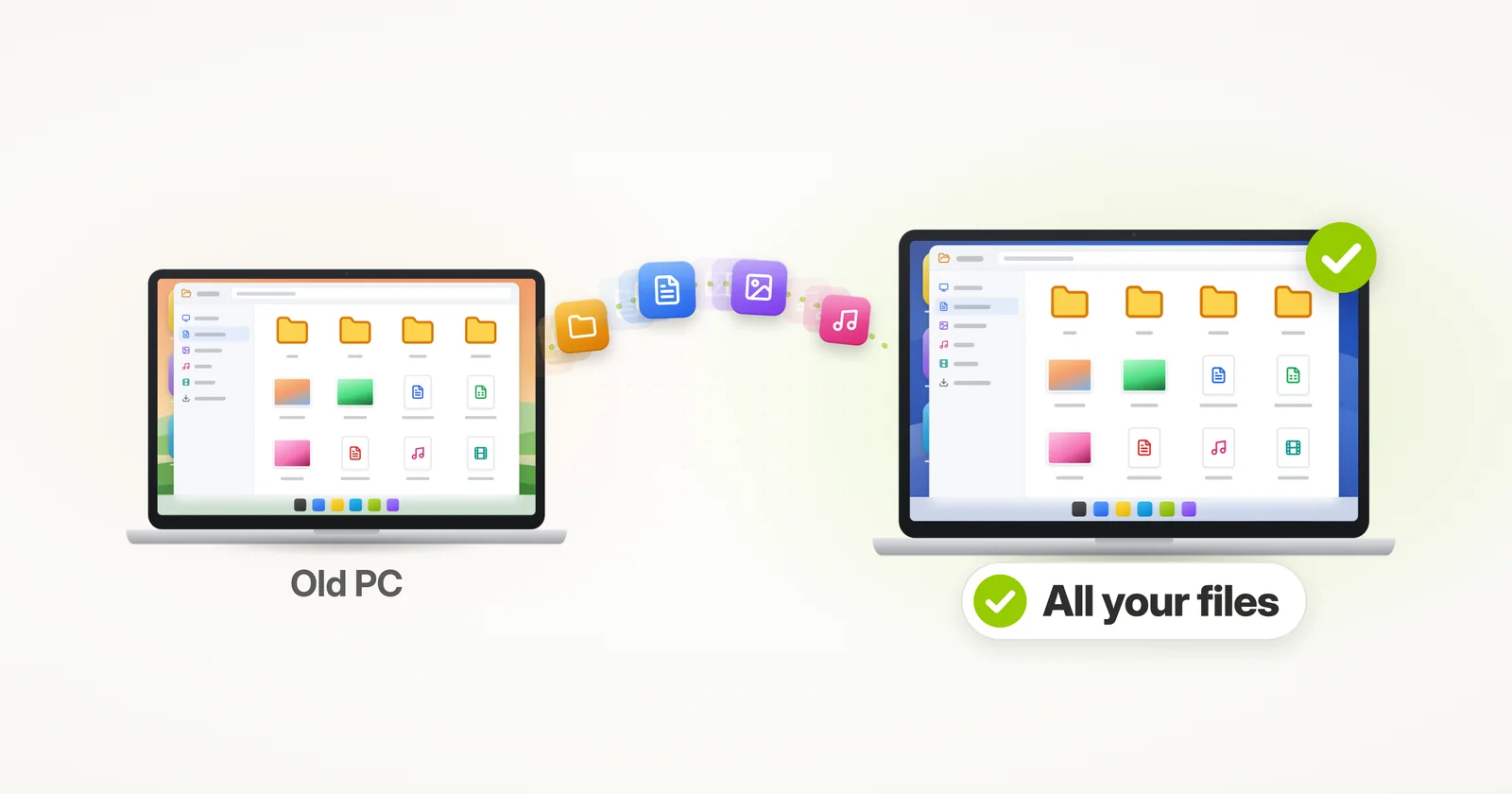
Need to transfer files from one computer to another – PC to PC, on Windows 11 or Windows 10?
To transfer data to a new computer?
To move all files from an old computer to a new computer?
This tutorial covers several ways to do that.
Overall, you can do the transfer manually (free, but requires some work), or automatically (not free, but requires no tech knowledge and very convenient). We’ll cover all options here, including:
- Manually copying files using a USB stick
- Manually via Cloud sync options such as Dropbox or OneDrive
- Automatically, using file transfer software that can transfer all files from PC to PC without the hassle (simplest and most complete option)
Of course, if you are transferring to a new computer (replacing your old one), you would typically want to transfer more than just a few files. Ideally, the goal is to transfer all documents, pictures, the whole user profile, accounts, favorites, bookmarks, emails, everything you have and use. You could even want to transfer the actual programs from your old computer. All of this is covered below.
How do I transfer files from one PC to another?
Short answer: For a few files, copy them to a USB drive or send them with OneDrive or Nearby sharing – it’s free. For a move to a new computer, Zinstall WinWin transfers all of your files, along with your settings and programs, automatically. The free ways move files only, and Microsoft’s own PC-to-PC transfer is no longer available.1
Let’s go over the options.
Video tutorial – how to transfer files from one computer to another

How do I transfer files from one computer to another with a USB drive?
A typical way to transfer files to another computer is to use a USB stick (or a USB external hard drive). You simply connect the USB drive to the computer and copy files to it, same as you would copy them to any other folder.
Then, you move the USB drive to the other computer, and copy the files from the drive to the new computer itself.
Pros:
- Relatively simple to use
- With a USB external hard drive, allows to copy even a large amount of data, and fairly quickly
- Cheap – no special software is used, and USB drives are inexpensive (you probably already have one)
Cons:
- Requires a USB drive to use (as opposed to direct transfer over internet / network)
- You have to manually select which files to copy, and manually copy them over.
- If you are trying to transfer all the files you have on the computer, this will not be as easy. You will almost certainly miss / forget some of them, too.
- This method does not allow to transfer anything which is not a file – e.g. user settings, accounts, program settings, emails, applications and so on.
To summarize, a USB stick / external drive is a good way to transfer a bunch of files from one computer to another.
However, it is not a good way to transfer all files from one computer to another, since that quickly becomes cumbersome or impossible to do manually.
See below for the way to automatically transfer files from one computer to another.

How do I transfer files to another computer with OneDrive or Dropbox?
You can also transfer files manually with a Cloud sync tool, such as OneDrive (it comes with Windows 112) or Dropbox.
The process is similar to using a USB drive (as described above), but instead of copying files to a USB drive, you copy files to another computer using Dropbox, OneDrive or other Cloud sync tools.
Most of these tools work in a similar fashion. You have a folder on your computer that syncs with all other computers you have. If you put a file into that folder, it eventually appears on the other computer.
So you would simply put the files you want into your Dropbox / OneDrive folder, and, after a while, you would have those files in the Dropbox / OneDrive folder on the other computer.
Pros:
- Fairly straightforward to use
- Does not require a USB drive
Cons:
- The free space is small (5 GB on OneDrive3, 2 GB on Dropbox4), so any sizable amount of files needs a paid subscription
- For larger amounts of files, transfer is slow (depends on Internet connection)
- If you are trying to transfer all the files you have on the computer, this will not be as easy. You will almost certainly miss / forget some of them, too.
- This method does not allow to transfer anything which is not a simple user file – e.g. user settings, program settings, emails, applications and so on.
To summarize, using Cloud is a good way to transfer small amounts of files from one computer to another, without paying for software / hardware.
It gets slow and more expensive when you need to transfer a larger amount of files.
It is not a good way to transfer all files from one computer to another, since that quickly becomes cumbersome or impossible to do manually.
See below for the way to automatically transfer files from one computer to another.
How do I transfer everything from my old PC to my new PC?
The only way to be sure that you have all of your files – and also the simplest way to do the transfer – is to use an automatic transfer tool, that does the whole process for you. No fiddling with USB drives or Cloud, no forgetting files, and not just files – everything.
On a typical computer, there are 3 types of data that are important in terms of its day to day use:
- Files, such as documents, pictures, music, videos and emails
- Settings, such as user profiles, emails, accounts, passwords, favorites, bookmarks, wallpaper and other personalization
- Programs, such as transferring Microsoft Office, Adobe Photoshop, Quickbooks, TurboTax, Firefox, Chrome, and other programs to the new computer
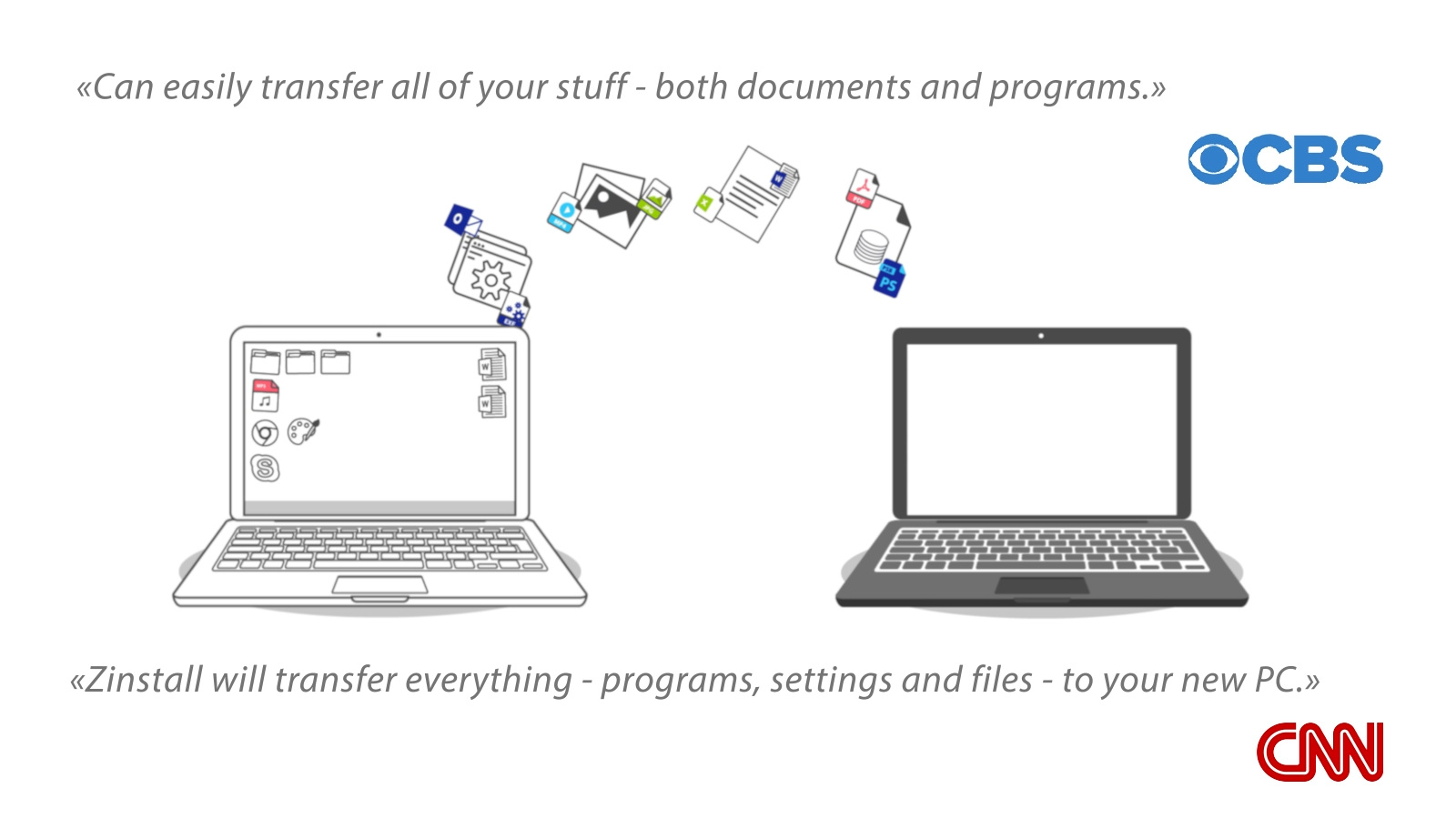
All of that can be transferred automatically, using a tool called Zinstall WinWin.
It requires no technical knowledge to use, too. If you know how to download a file from the internet, you know how to use it – and can save a lot of time and avoid a lot of frustration when you transfer files to a new computer.
How to transfer all files from one computer to another
- Run Zinstall WinWin on your current computer (the one you are transferring from).
Note: You can get Zinstall WinWin here. - Run Zinstall WinWin on the new computer
- You don’t need to do any configurations for the computers to connect – it’s automatic
- If the computers are already connect to same router, same Internet connection, or same wireless connection, you don’t need anything else
- If the computers are not connected at all, connect them with a network / Ethernet cable
- If you’d like to select which applications and files you want to transfer, press the Advanced menu. If you just want to transfer everything, you don’t need to go to the Advanced menu.
- Press “Go” on the new Windows 11 or Windows 10 computer to start the transfer
That’s it!
You can now just let it do the transfer. You don’t need to sit near the computer, don’t need to manually hunt down your files or reinstall your programs.
This kind of tool is not suitable for when you just need to transfer a few files (and you have cheap / free alternatives for that, as described above).
But when you need to transfer to a new computer, it is irreplaceable.
It can save hours of painstaking work and ensure that no files are forgotten and no data is missing – making your transfer to a new computer a smooth, pleasant experience.
Is there a free way to transfer files to a new computer?
Yes. A USB drive, OneDrive, Nearby sharing and a shared folder on your home network all move files for free (cloud storage is free up to its limit). They move files only, though: your programs, settings and accounts don’t come along, and you pick and copy everything yourself.
Zinstall WinWin is paid software (see its product page). It is worth it when you move to a new computer and want everything to come over, not when you only need a folder or two.
Can I transfer files from one computer to another without a USB drive?
Yes. Nearby sharing sends files between two Windows PCs over Wi-Fi or Bluetooth, although Bluetooth is much slower5; OneDrive works from anywhere; and a folder shared on your home network works between computers on the same router.6 Zinstall WinWin needs no USB drive either: the two computers connect over your home network or Wi-Fi, or with a network cable.
Can I transfer files between computers with a USB cable?
Not with an ordinary USB cable: two computers connected with a plain USB-A to USB-A cable can’t talk to each other. You need a special transfer cable with its own electronics and software (see which Easy Transfer cable works with Windows 11). A network (Ethernet) cable between the two computers is the simpler option, and it is all Zinstall WinWin needs when the computers aren’t on the same network.
What is the fastest way to transfer files from one computer to another?
A wired connection is the fastest way: a network cable between the computers, or a fast external drive such as a USB SSD. Wi-Fi is slower, and the cloud is the slowest, because every file is uploaded and then downloaded again. For a big transfer with Zinstall WinWin, connect the computers with a network cable, or both to your router.
Does Windows 11 have a built-in way to transfer everything to a new PC?
No. Microsoft’s own PC-to-PC transfer is no longer available, and Microsoft points to Windows Backup instead.1 Windows Backup saves your main folders to OneDrive along with your settings and a list of your apps. On the new PC, Microsoft Store apps come back, but for other programs you are sent to the web to download the installer and reinstall them.7
Ready to transfer all of your files from one computer to another?
Video tutorial – how to transfer files from one computer to another
Sources
1. Microsoft Support: Transfer your files and settings to a new Windows PC, checked November 2026
2. Microsoft Support: Sync your computer's files and folders with OneDrive, checked November 2026
3. Microsoft Support: Microsoft storage quotas, checked November 2026
4. Dropbox Help: What is Dropbox Basic?, updated January 2026
5. Microsoft Support: Share things with nearby devices in Windows, checked November 2026
6. Microsoft Support: File sharing over a network in Windows, checked November 2026
7. Microsoft Support: Back up and restore with Windows Backup, updated February 2026
guaranteeAny PC, any Windows Buy now