
How To Transfer Favorites and Bookmarks From One Computer to Another
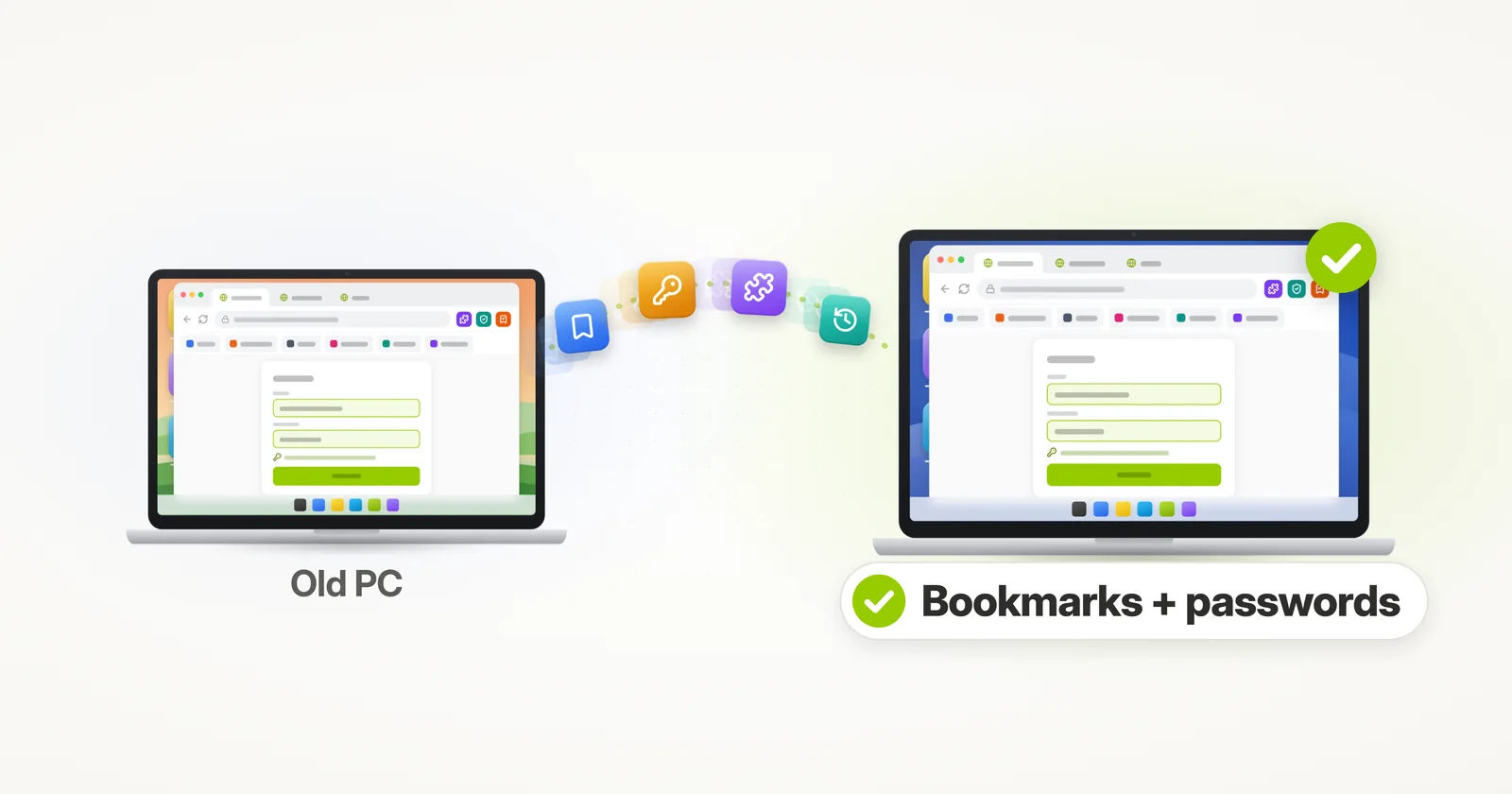
Need to transfer your bookmarks and favorites from one computer or laptop to another? This tutorial will show you how, for Chrome and Firefox.
Bookmarks are usually the first thing people think of on a new computer – but they are just one small part of your browser. Your passwords, logins, extensions and history live there too, and the browser itself is just one of your programs. So there are two ways to go about it: transfer just the bookmarks by hand, or have Zinstall transfer the whole browser, with everything in it, along with the rest of your computer. If you prefer to just skip to the easier, automatic option, you can click here for automatic transfer of bookmarks to a new computer.
How do I transfer bookmarks from one computer to another?
Short answer: Zinstall WinWin transfers Chrome or Firefox to the new computer with all your bookmarks, passwords, extensions and history – along with your other programs and files. To move only the bookmarks, export them to a file on the old computer and import that file on the new one, or sign in to the same browser account on both computers.
Is there a way to copy all of my bookmarks at once?
Yes. Chrome and Firefox can both export all of your bookmarks, folders included, into one file in a single step – and import that file on the other computer. What the file doesn’t hold is the rest of your browser: your passwords, extensions, history and settings stay behind.
To bring all of that along too, transfer the whole browser instead – see the automatic transfer below.
How do I export my Chrome bookmarks?
Open Chrome’s Bookmark manager (Ctrl+Shift+O), click the three-dot menu at the top of the page and choose “Export bookmarks”. Chrome saves all your bookmarks to one HTML file.
- Copy that file to the new computer – on a USB stick, or email it to yourself.
- On the new computer, in Chrome’s three-dot menu choose “Bookmarks and lists”, then “Import bookmarks and settings”, and pick the file.
Google’s own help has the details: Import Chrome bookmarks & settings.
How can I transfer Chrome bookmarks to a new computer without logging in?
Export them to a file, or transfer Chrome itself. Signing in to Chrome brings your bookmarks back only if they were saved in your Google Account, and only with the same account on both computers; the export file needs no account at all, and neither does Zinstall.
The export moves the bookmarks only, though. Zinstall transfers Chrome with its bookmarks, saved passwords, extensions and history – no Google Account needed.
Will Chrome save my bookmarks if I get a new computer?
Only the bookmarks saved in your Google Account. If you were signed in to Chrome and saving them to your account, signing in on the new computer with the same account brings them back. Bookmarks saved while signed out are kept only on the old computer, and stay there until you export or transfer them.
Where are Chrome bookmarks stored?
On Windows, Chrome keeps your bookmarks in a file named Bookmarks, in your Chrome profile folder: C:\Users\your user name\AppData\Local\Google\Chrome\User Data\Default (or Profile 1, Profile 2 and so on, if you use more than one Chrome profile).
To see your exact folder, type chrome://version in Chrome’s address bar and look at “Profile Path”. That file is Chrome’s own working copy, though, not meant to be copied by hand – to move your bookmarks, use the export above, or transfer Chrome with everything in it.
How do I transfer Firefox bookmarks to a new computer?
Firefox can export them to a file too: open the Library (Ctrl+Shift+O), choose “Import and Backup” and then “Export Bookmarks to HTML”. On the new computer, the same menu has “Import Bookmarks from HTML”. Signing in to the same Mozilla account on both computers syncs them as well.
Mozilla’s help has the details: Export Firefox bookmarks to an HTML file. To move Firefox with everything in it – passwords, extensions, history and settings too – see how to transfer your entire Firefox profile.
Microsoft Edge favorites (manual only)
Edge can save its favorites to an HTML file too (“Export favorites”, in the Favorites menu), and Edge on the new computer can import that file – Microsoft’s help covers the import: Import your favorites and passwords in Microsoft Edge. Signing in to Edge with the same Microsoft account on both computers brings them over as well.
This one stays a manual job: Zinstall transfers Chrome and Firefox with their bookmarks, but it does not transfer Edge favorites.
Doable? Yes. Easy? Not exactly. It is one browser at a time, and the file holds your bookmarks only: your passwords, extensions, history and settings stay on the old computer, and signing in brings back only what was saved to that same account. To make things much, much easier, you can just let a dedicated transfer product do this whole thing for you. Read on for instructions on that.
Automatic Transfer of Chrome and Firefox Bookmarks to a New Computer
The easiest way to transfer bookmarks from one computer to another is to use a dedicated transfer tool – Zinstall WinWin. Nothing to export, import or sign in to.
It transfers your browser itself – Chrome or Firefox, already installed – with your bookmarks, passwords, extensions and history. And not just the browser: all other apps you have as well, along with your profiles, accounts, personalization, and all files from your old computer – automatically.
And it does not just copy files or profiles; apps get installed automatically on the new computer, and configured just like on the old one. You don’t need to install them yourself and you don’t need to configure them yourself.
It requires no technical knowledge to use, too. If you know how to download a file from the internet, you know how to use it – and can save a lot of time and avoid a lot of frustration when you transfer bookmarks from one computer to another.
How to transfer bookmarks from one computer to another – automatically
- Run Zinstall WinWin on your old computer (the one you are transferring from).
Note: You can get Zinstall WinWin here. - Run Zinstall WinWin on the new computer
- You don’t need to do any configurations for the computers to connect – it’s automatic
- Just have both computers connected to same Internet (wireless / wifi / wired)
- If you’d like to select which applications and files you want to transfer, press the Advanced menu. If you just want to transfer everything, you don’t need to go to the Advanced menu.
- Press “Go” on the new computer to start the transfer
That’s it!
Once the transfer is done, you will have your Chrome or Firefox all set on the new computer, with your bookmarks, logins, passwords, even your recently viewed websites – just like on the old computer.
And not just Chrome – this transfers your other apps, profiles, settings and files as well.
The new computer will really feel just like home.
How do I export everything from Chrome?
Not in one go: Chrome has no single button that packs up everything for a new computer. Bookmarks export to an HTML file and saved passwords export separately, from Google Password Manager – but your extensions, history and settings have no file that the new computer’s Chrome can import.
Signing in to Chrome with your Google Account brings back what was saved in that account – bookmarks, passwords, extensions and settings, and your history only if “History and tabs” is turned on. To take all of it at once, with or without an account, transfer Chrome itself – see how to transfer Chrome to a new computer.
Why didn’t my bookmarks transfer to my new computer?
Usually because they were never saved in your account. Bookmarks come back by themselves only if the old browser saved them to your account – a Google Account for Chrome, a Mozilla account for Firefox – and you sign in with that same account on the new computer. Bookmarks saved while signed out stay on the old computer.
A different account, a different browser profile or a different browser shows none of them either. If the old computer still works, your bookmarks are still on it: export them, or transfer the browser with Zinstall.
How do I back up my Chrome bookmarks?
Export them to an HTML file from time to time, and keep a copy somewhere other than the computer – a USB stick or your cloud storage. That file is a copy you can always import again, into Chrome or any other browser.
To back up everything on the computer – Chrome and your bookmarks, your other programs and your files – Zinstall FullBack does it automatically.
Ready to transfer bookmarks from one computer to another, along with your files and apps?
See also: our guides on transferring Chrome to a new computer and transferring your passwords to a new computer.
Video tutorial – how to transfer Chrome bookmarks and passwords to a new computer
guaranteeAny PC, any Windows Buy now